
Home Forum User Guide
Forum User Guide
Introduction
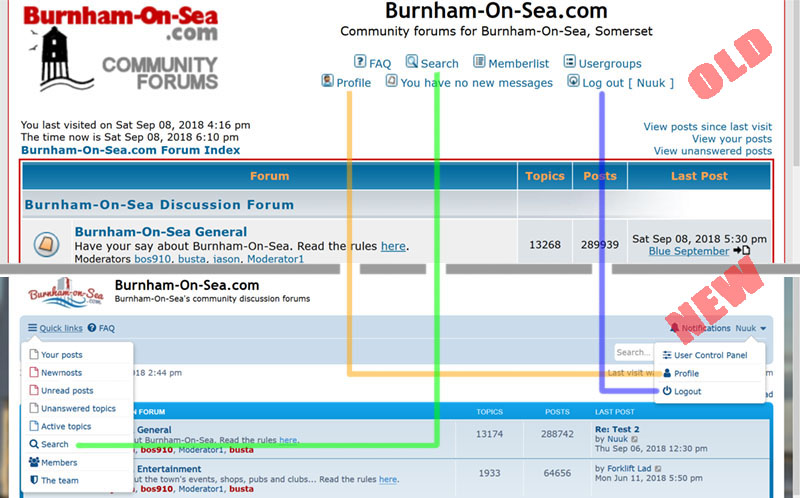
This forum guide has been updated to reflect the new forum software. It is intended to show how to use the forum with the changed software, and continues to offer further guidance on using a public forum. If something in the guide is too small to see clearly, use the ‘Zoom’ function in your browser to enlarge the display. ‘Zoom’ is usually found under the ‘VIEW’ tab on your browser’s toolbar at the top of the screen. Or you can try holding down the ‘Ctrl’key, and pressing the ‘+’ key. If you are already familiar with using the forum, here is a quick visual guide to what has changed.
It doesn’t take long using an on-line forum to become fairly confident about posting there. So it’s easy to forget that for some people, posting still appears to be like crossing a minefield. So many questions like how do you quote somebody in a post, how do you add pictures, how do you use emoticons/Smilies correctly? Even when the basics have been learned, it appears that many people don’t quite understand how to behave on a public forum, no doubt lulled into a false sense of security because they are anonymously sitting behind a keyboard! Or perhaps because they have never given the matter any real thought. It’s easy to dive in and ‘have your say’ and forget that you are interacting with (many) other human beings, some of whom will have a completely different set of values/morals to your own. Sadly we see too many unnecessary arguments on forums (many caused by simple misunderstandings), and it’s not surprising that many forums are moderated because of this.
Posting Guidelines
Here are a few suggestions to help posters avoid a Faux pas:
- Read the forum rules. Yes, BORING! But it may stop you making a mistake that you later regret, upsetting somebody else, or falling out with the person who runs the forum. It’s frustrating to find that your post has been removed by the moderators, so know the rules of the forum, and it shouldn’t happen to you.
- Stay on topic. Read the thread and the title of the thread. Get a feel of what the main subject is. Develop the subject but don’t go off on a completely different one. A little bit of humour is fine, there should be room for fun on any forum but choose your thread carefully. If it is a serious topic perhaps it is best to keep it that way.
- If you are replying to something specific by another poster it’s best to quote what you are referring to.
- Be respectful, even if you don’t agree with another poster or their point of view.
- Don’t use foul or abusive language. Most forums have filters that will change an unacceptable word to something else like a line of asterisks, ie S***, F*** etc. But how does it look if your post contains words that have been modified in that way?
- Don’t write everything in capital letters. It is the equivalent of shouting, and considered rude!
- Don’t generalise! This is probably the most common mistake found on forums. It’s a sign that you haven’t thought about the issue very carefully, or you just want a rant against a particular group of people. For instance: not all young people are trouble-makers, and not all old people are bad drivers.
- Don’t use the forum to try and sell anything, or for commercial gain.
- Don’t have more than one ID on a forum. You may think that it is clever and allows you to have some fun but ultimately people will catch on, and they may then question why you need more than one identity, resulting in you lacking credibility on that forum.
- Don’t use the forum as a type of instant messaging service. In other words don’t use it to chat with folk just for the sake of passing the time. There are many other Internet services like Facebook and Twitter that can be used for that. Unnecessary ‘chat’ on forum threads leads to the useful information getting buried, and can annoy some folk.
- Don’t wash your private laundry in public. In other words don’t use the forum to carry on arguments against somebody else. That’s what emails are for.
- Be very careful what you write on a forum when you have had few drinks – you may well regret it the next day.
- Don’t fly-post (post for the sake of it, or building up your post count). You will only annoy other forum members, and make it difficult to find the useful posts in a thread.
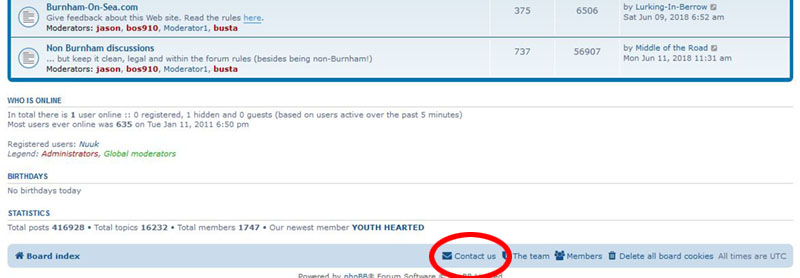
- Don’t moan publicly if you find one of your posts removed from the forum. Instead contact the forum owner to ask why the moderators took that action. There is a ‘Contact Us’ link at the bottom of the page (see below).
In most cases though, it should be fairly obvious why a post has been removed by the moderators.
Remember that writing something down does not necessarily convey the impression of how you actually mean it. For instance, you may say something in jest with a group of friends and wink at the same time to show them that you are not serious. To give us something akin to facial expressions, forums provide little pictures that are known as emoticons. Different forums have different sets of emoticons (also known as Smilies) but several are common to nearly all sites. Here are some common ones and what they signify or infer:
 means that the poster is happy, or is pleased.
 means that that the poster is not pleased
 means that the posted is sad, or is displeased.
 means that the poster is joking, or that something has made them laugh.
 means that the poster is shocked.
 means that the poster is not being serious.
 means that the poster is being naughty.
 means that the poster is confused.
 means that the poster is embarrassed.
 means that the poster has had an idea.
 means that the poster is asking a question.
 means that the poster thinks something is cool.
 means that the poster is being sarcastic.
A word of caution when using the ‘sarcasm’ emoticon. It is OK to be sarcastic about something but not about somebody on the forum, or something that they have written. It comes over as being a bit rude!
To insert an emoticon into your post, left click exactly where you want it to appear, and then left click on one of the emoticons displayed to the right of the message box. If you hover the cursor over each Smilie, you will be shown what it implies.
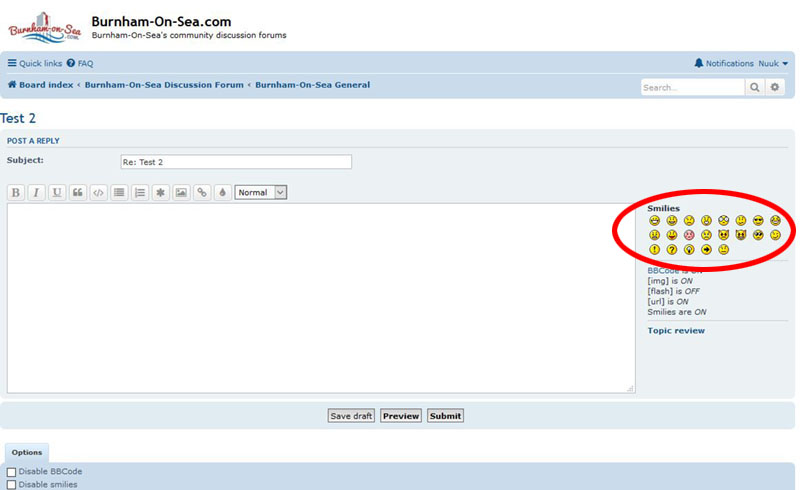
If you want a wider choice of emoticons, try the ClickSmilies site but do remember emoticons/Smilies are tools, and not there to decorate your posts. Over-using them will make you look childish!
Registering to post on a forum
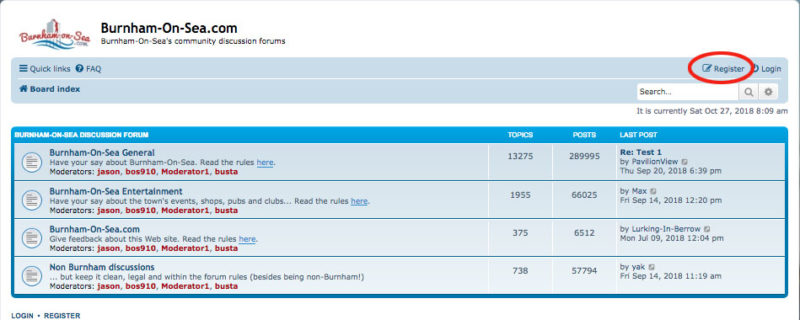
Hardly any forum will allow you to post something until you have signed up (registered) with them. To register on BOS.COM, click on the Register button at the top right of the screen.
You must then agree to the terms, and go to the next page. Enter a Username or ID (identity). You can use your real name of course but most people choose to stay anonymous and use a name that doesn’t identify them, eg MickyMouse, TheBoss, Topcat, etc. It’s probably safer on a local forum to use an alias as you may not want people to be able to locate where you live.
You will also be required to give a valid email address, and a password (to prevent other people posting under your ID). You will then be contacted via the address that you entered to confirm that it is your genuine email address. This is to try and stop people joining the forum for dodgy reasons.
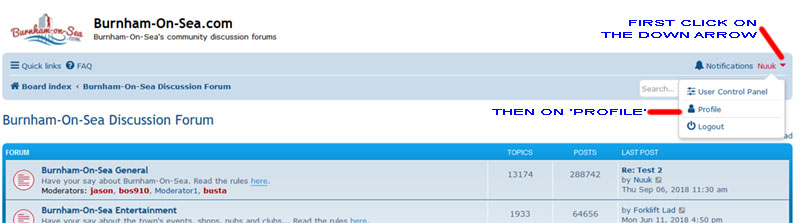
When you are registered and accepted onto the forum, you may then edit what is called your PROFILE. To edit your PROFILE left click on your username at the top right corner of the screen, and when the drop down menu appears, click on the word ‘Profile’.
On the next screen, click on ‘Edit profile’……
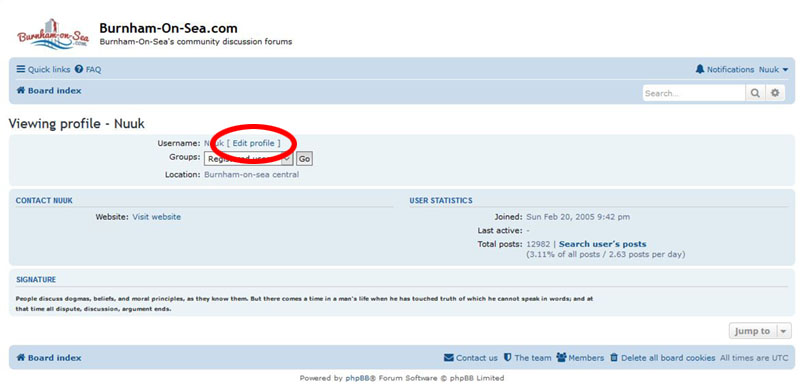
…….to reveal the page where you can edit the information about yourself.
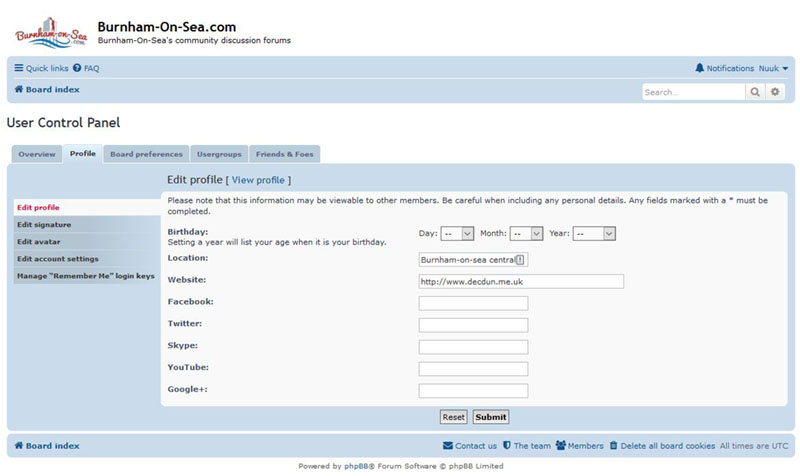
The ‘Control Panel’ provides you with various options.
- Choose if you want to receive an email when somebody replies to a thread that you have posted on. (under the ‘Board Preferences’ tab).
- Add a signature; a line or two that says something about you (‘Edit signature button on left).
- Add an avatar (a small picture that perhaps identifies you more easily) (‘Edit avatar’ button on left).
- Change the time zone that you are in (under the ‘Board Preferences’ tab).
- Change your email address or password if you need to. To change your password, click on the ‘Edit account settings’ button on the left of the screen.
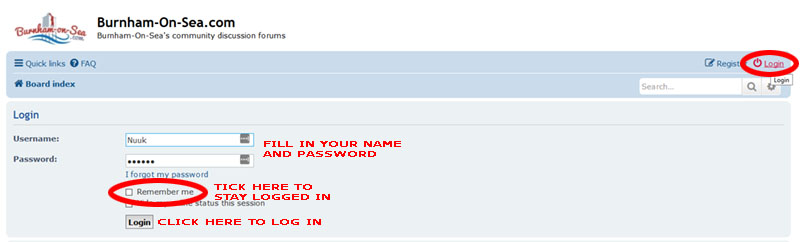
Once you are registered, you can post on the BOS.COM forum, but you must be logged in to do so. If you are not logged in, make sure that you are on the ‘Board Index’ page, then click on the ‘Log in’ button at the top right of the page. Type in your name and password, and then click on the ‘LOG IN’ button. If you don’t want to log in each time that you want to post on the forum, put a tick in the little box that says ‘Remember me’.
Posting in a thread
To reply to a post, or add to something already posted in a thread, click on the ‘POST REPLY’ button. Note that if you are not logged in when you try to make a reply, you will be asked to log in with your username and password. If you don’t want to have to log in every time that you want to post, tick the little box that says ‘Remember me‘.
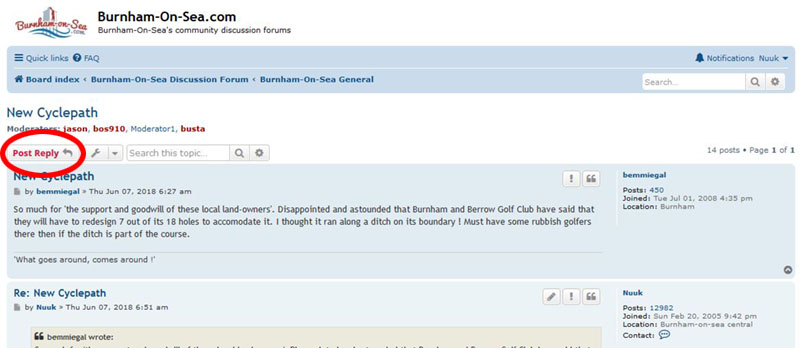
There is another ‘POST REPLY’ button at the bottom of the page. When you have clicked on either one of these buttons, you will then see the following screen.

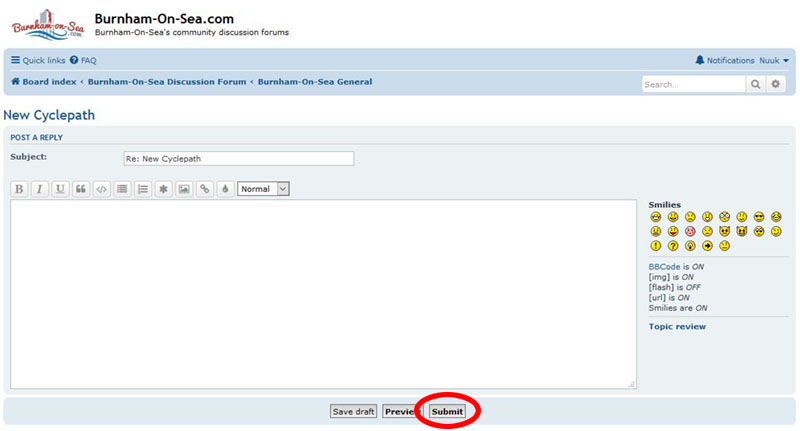
Click in the white box to position the cursor, and then start typing your reply. You should see the text appearing in the large white box, starting where you placed the cursor. You can type in plain text and that will display perfectly well in your post. If you wish to add some formatting to your text, ie change the font style, colour, or size, please see here for instructions on how to do so.
When you are happy with your post first click on the ‘PREVIEW’ button to see what it will actually look like when you submit it. If it looks OK, then click on the Submit’ button.’ If not, simply change what you have typed.
Starting a new thread
You may be happier to begin by only posting replies in existing threads. But sooner or later you may need to start a new thread about something that isn’t already being discussed in another thread. It is always best to look through (or Search the forum first) and make sure that the subject that you wish to discuss isn’t already started in another thread. Having two or more threads on the same subject can lead to a great deal of confusion!
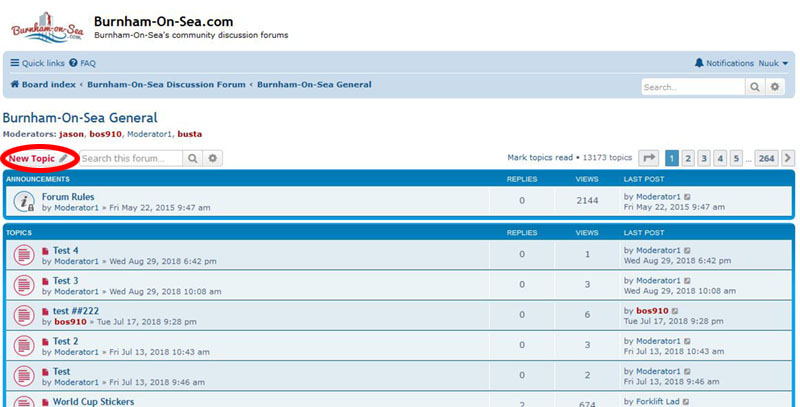
To start a new thread, you click on the ‘NEW TOPIC’ button as shown below. Posting to a new thread is much like making a reply in an existing thread but do remember to enter a title for the thread. And try and make the title relevant to that thread because it will make it much easier for somebody to locate the thread if they need to. There is nothing more annoying than a bit of information that you are looking for that is ‘hidden’ away in a topic called ‘IMPORTANT’ or ‘LOOK AT THIS’!
If you are starting a new topic about a subject that is reported in the news pages, or perhaps somewhere else, it is considerate to post a link to that source so that other forum members understand what you are referring to. See the Linking section of this guide to do that.
Finally, make sure that you start your new thread in the appropriate section. As regards the BOS.Com site the sections are:
Burnham-On-Sea General – for all issues relating to Burnham-on-sea or the surrounding area. Current news, history, pictures, etc
Burnham-On-Sea Entertainment – for issues relating to entertainment, ie pubs, restaurants, cinemas, concerts, sports, events, etc. The forum where you can tell a joke, or something entertaining.
Burnham-On-Sea.com – for issues relating to the Burnham-on-sea.com web site, or anything to do with the forum itself. This is where to talk about the BOS.Com web site, ie report a fault, or make a suggestion. It is not the place to talk about Burnham-on-sea issues.
Non Burnham Discussions – for anything else that is not related to the Burnham-on-sea area but which you may want to discuss, ie national or world news.
Spelling and grammar
It’s probably fair to say that a majority of people would not relish speaking in public. It can be embarrassing for those who are not eloquent and articulate. I’m sure that some folk also feel reluctant to post on public forums because they are worried about their written English, so let’s try and address that issue now.
First off remember that you don’t have to be identified on a forum. It is quite acceptable (even preferable) to register with an ID that keeps you anonymous. Secondly, there are one or two tricks to help you create a well-written, and understandable post. Not everybody has perfect skills when it comes to writing. Many adults still can’t read or write much, and many more can’t spell well, or understand the rules of grammar.
You can get help with spelling when using a computer by installing some kind of spell-check software. The Firefox browser has a spell-check add-on that can be downloaded and installed. You can find that here. Look for the appropriate dictionary and click where it says Install dictionary.
An application called TinySpell works with just about any program that uses text on a computer. It works in the background and checks your spelling as you type, making a sound when you misspell something. It can also suggest the correct spelling. You can download TinySpell from here.
But what about the grammar side of writing? Arguably, it doesn’t matter too much about punctuation etc if your post is understandable. The worst examples make a number of points in a single sentence where there is no punctuation at all. Here is an example:
the picture of John and chris looks good I know John Smith he used to drink in the same Pub as me a while back he knows my mum as well but he hasn’t seen me in a while so probably he won’t recognize me but John and Chris all the very best on your venture and every success for the future you deserve to be successful cos there is nothing like this in the town the people need something like this there is nothing like it at present and it will be very welcome the town needs a good cafe
You may have noticed as you read that, it was rather like holding your breath. And you probably had to read it a couple of times to get the gist of what was being said. How could that post have been improved? Well here are some simple tips:
Think about each point that is being made, and put it on a separate line like this:
the picture of John and chris looks good
I know John Smith
he used to drink in the same Pub as me a while back
he knows my mum as well but he hasn’t seen me in a while
so probably he won’t recognize me
but John and Chris all the very best on your venture and every success for the future
you deserve to be successful cos there is nothing like this in the town
the people need something like this
there is nothing like it at present and it will be very welcome
the town needs a good cafe
Even without any punctuation added, it is now a lot easier to read and understand. But let’s add two simple rules to make it ‘correct’. We’ll start each new line with a capital letter, and we’ll put a full stop at the end of each line.
The picture of John and chris looks good.
I know John Smith.
He used to drink in the same Pub as me a while back.
He knows my mum as well but he hasn’t seen me in a while.
So probably he won’t recognize me.
But John and Chris all the very best on your venture and every success for the future.
You deserve to be successful cos there is nothing like this in the town.
The people need something like this.
There is nothing like it at present and it will be very welcome.
The town needs a good cafe.
That post is now almost ‘correct’ except that the second name, ie chris should also always begin with a capital letter because it is somebody’s name. It is certainly much clearer what the poster means. So, four simple rules that should be easy to remember transform a rather confusing post into something that is quite clear.
Always read your posts through carefully before you click on the SUBMIT button. Ask yourself if it is easy to understand. Ask if you could rephrase what you have said to make it clearer. Look for any mistakes. Often you may find that it is only after you have posted that you spot a mistake. Don’t worry, you can put things right by clicking on the ‘EDIT’ button at the top right corner of your post…..
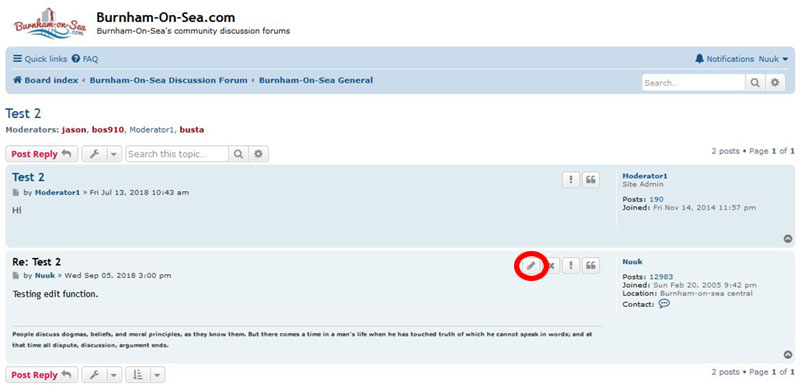
……that will allow you to edit (change) what you have written or alter the post in other ways, perhaps changing or removing a picture.
If you are not sure whether to use a capital letter or not, don’t fall into the trap of writing everything in capitals. That’s the equivalent of SHOUTING, and not considered very polite. If you do want your message to stand out, use larger text, or some other formatting as described in the section on formatting.
One other tip on spelling and grammar. Don’t apologise for your posts being poorly written because you have dyslexia (if you haven’t)! So many people do that when clearly they are not dyslexic.
Finally, things have moved on quite considerably from when this guide was first written. Something like the Grammarly software, can aid anybody in writing good English.
Cutting and pasting text
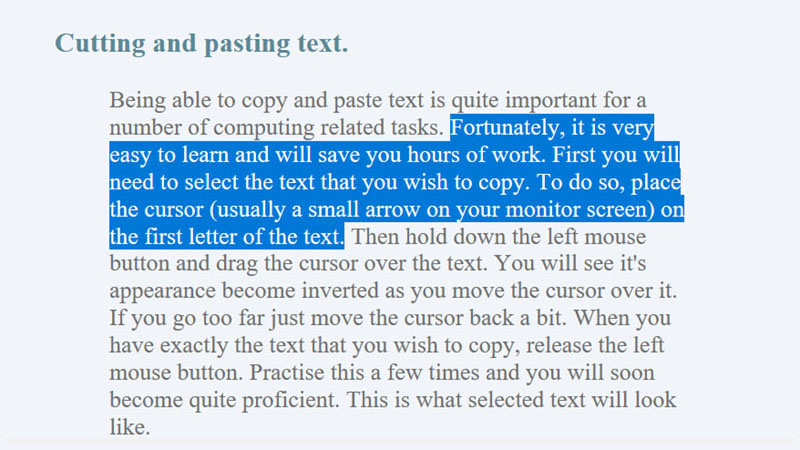
Being able to copy and paste text is quite important for a number of computing related tasks. Fortunately, it is very easy to learn and will save you hours of work. First you will need to select the text that you wish to copy. To do so, place the cursor (usually a small arrow on your monitor screen) on the first letter of the text. Then hold down the left mouse button and drag the cursor over the text. You will see it’s appearance become inverted as you move the cursor over it. If you go too far just move the cursor back a bit. When you have highlighted the text that you wish to copy, release the left mouse button. Practise this a few times and you will soon become quite proficient. This is what selected text will look like.
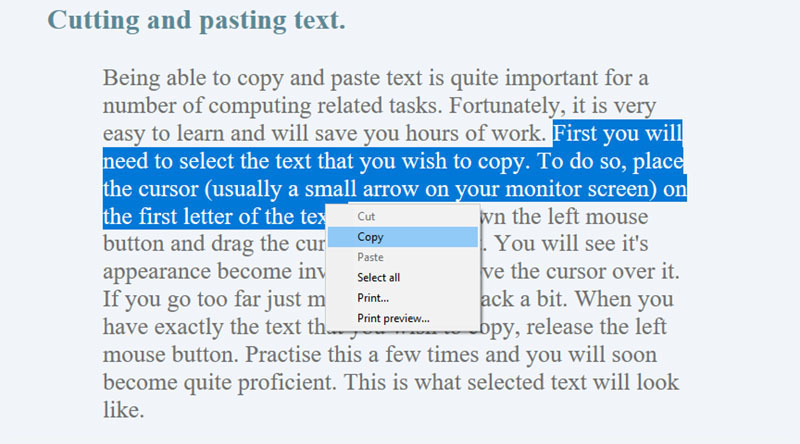
Now place the cursor somewhere over the inverted text and press the RIGHT mouse button. A small menu will appear. On that menu left click on ‘COPY’. The text should now be copied to what is known as the clipboard. That’s a temporary storage area used by the operating system.
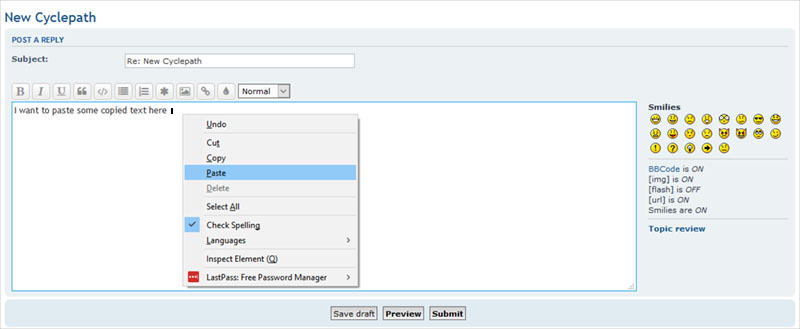
Now go to where you wish to paste the text. RIGHT click in the exact spot that you want your text to appear and this time left click on ‘PASTE’. The text should now appear. Practise this a few times until you can do it easily.
IMPORTANT When pasting anything from another part of the Internet, be aware that you may be infringing somebody elses’ copyright. Check if pictures are copyrighted. If you copy a news article, or anything else that comes from a known source, you should name that source with whatever you copy and paste into your post. For instance, if you copy a news article from the Daily Telegraph site, say that is where the article comes from (and if you know, who wrote it).
How to change the appearance of the text in your posts (formatting)
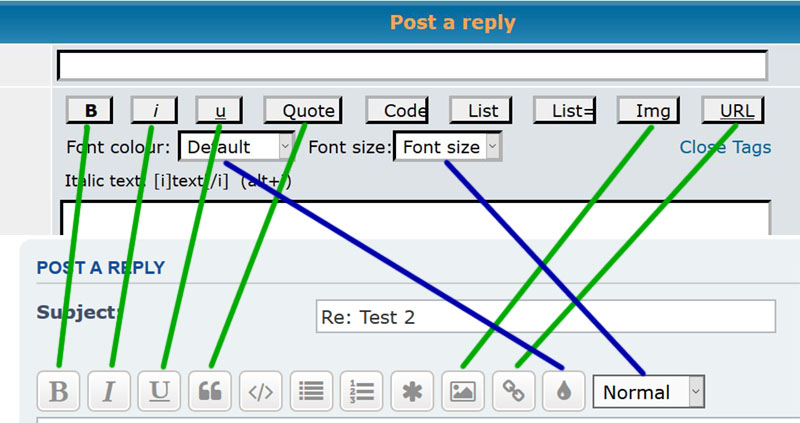
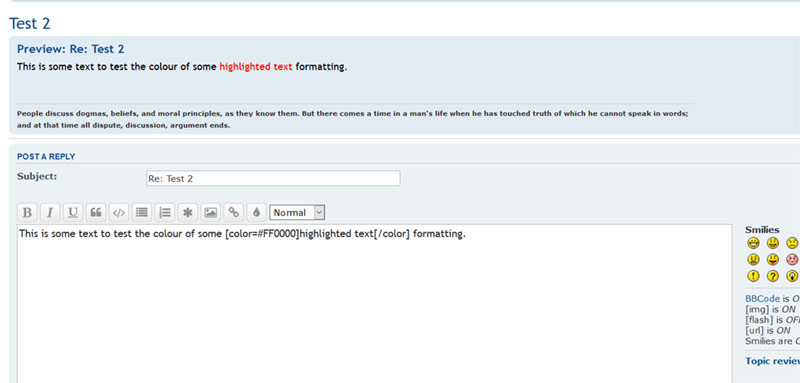
Text may be formatted to give it a different appearance, eg a different colour or size, underlined or italicized. To change your text, first select it using the method described in the copy and paste instructions. Remember that you don’t have to change all the text, just the bit that you select. Now let’s suppose that you want to change the colour of that text. While it is selected, click on the colour button (see below) and you will see a drop down menu appear. Simply LEFT click on the colour that you want your text to be and you will see the text sandwiched between something like this: ‘[color=#FF0000]highlighted text[/color]’. If you then press the ‘REVIEW’ button, the text should turn to that colour in the ‘preview box’.
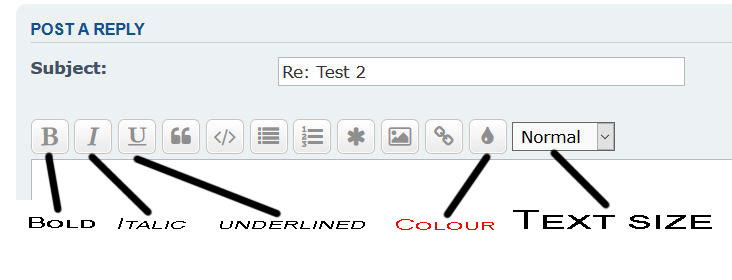
The same holds true for changing the font size except that you click on the small arrow next to where it says ‘Normal’ (see below).
The buttons marked B, I, and U will make the selected text appear bold, italicised, or underlined respectively (see below).
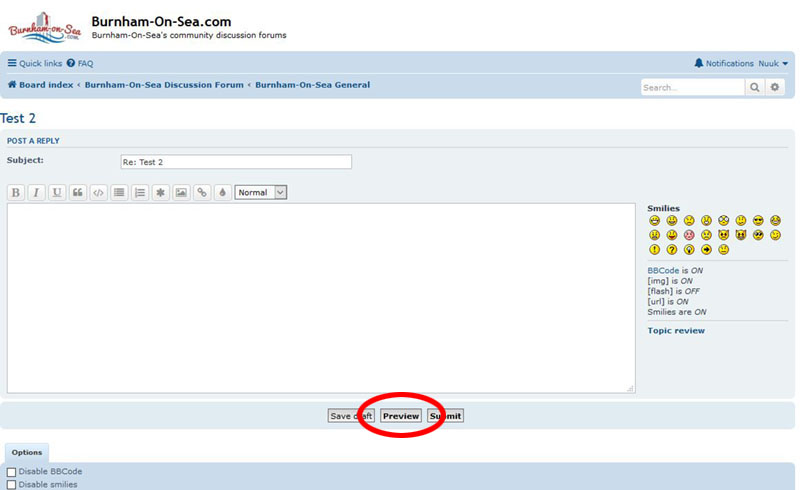
Here’s a tip: Practise your posts without actually posting. All you have to do is type in some text, change the colour or size, and then press the ‘PREVIEW’ button (see below) instead of the ‘SUBMIT’ button. You will then be able to see how your post looks. Change your text again, and use the ‘PREVIEW’ facility to see what it looks like on screen. It’s a great way to experiment and learn the ropes of formatting your text! Do this until you are familiar with the formatting controls.
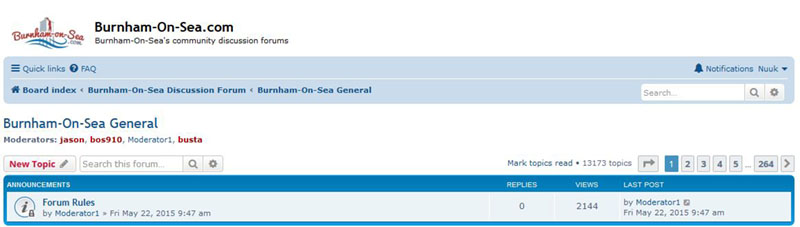
Posting pictures
Before we start on the ‘how to’ it should be useful to understand how the pictures that you see on your screen appear there.
A brief guide to understanding the Internet, and how pictures are ‘seen on your monitor.
When you view a picture on your monitor or mobile device screen, the picture is not necessarily ‘stored’ at the web site that you are browsing.
That picture may be stored somewhere else, for instance on a photo sharing site such as Flickr, Photobucket, or Imgur.
What is a web site? A web site or page is simply a list of code that your browser, eg Microsoft Edge, Firefox, Google Chrome etc, interprets into what you see on the screen.
The code is held on a computer, and accessed via a URL. A URL is like your postal address in enabling others to find where you live if they want to visit you (or collect something from you).
The code is separate to the pictures, videos, and sound that it may display. Your browser fetches them from where ever the code tells it to.
So when you want to view a web page that has a picture on it, the code specifies the name of that picture, and where it is located. The picture may be located on the same computer as the web page code, or on another computer (anywhere in the world).
For instance, the pictures seen on this site in threads like the Photo Challenge, are stored on a computer somewhere else. They are computers owned by the people who run image hosting sites such as Flickr, Photobucket, Imgur, etc.
The code of the page that you are viewing tells the browser where the picture that it wants to display is hosted. It does not physically bring the picture to the site that you are browsing, or to your computer.
So, if you are posting a picture on BOS.COM, that picture needs to be hosted somewhere like Flickr or Imgur. You then provide the information to the code on BOS.COM to tell your browser where to find that picture.
You are not placing your picture on the BOS.COM site when you post it there but it is still on the computer at Flickr or Imgur where you uploaded it to (don’t worry, that information is provided for you).
If you delete the picture from Flickr or Imgur, or move it to a different album, the browser will not be able to find it, and display it, and instead the browser will display a little empty box indicating that there should be a picture there but it cannot be found.
If you understood the above, you will now know that you need to find somewhere to host the picture that you want to display on the BOS.COM forum. (You could host it on your own computer but then your computer would need to be on, and connected to the Internet 24/7, for the picture to be readily available). Here are (in no particular order) three of the image hosting options that are known to work well. All are free to use, so it won’t cost you anything to upload your pictures.
IMGUR – You will need to register if you don’t already have an account Once you are registered, you can upload your pictures by either dragging and dropping them onto the IMGUR window, or selecting them by the ‘copy and paste’ method. Either way you must first LEFT click on the ‘ADD IMAGES’ button.
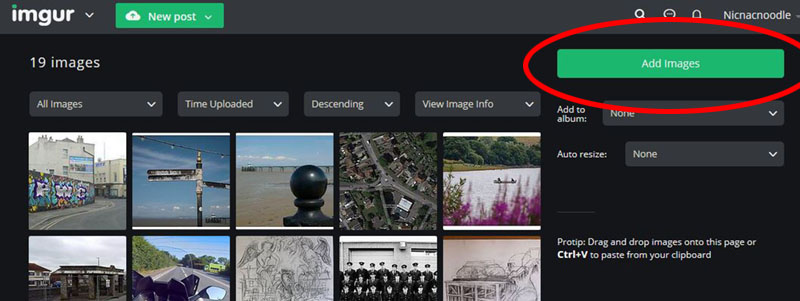
You will then see this screen.
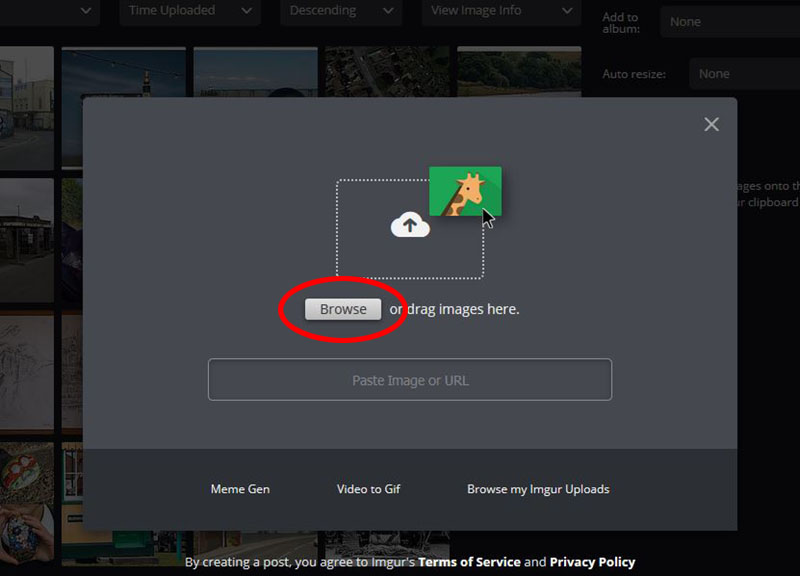
LEFT click on the browse button, and you will see a small window pop up like the one that you use in Windows Explorer. You will need to navigate to the folder containing your picture, and then select that picture with a LEFT click. Then LEFT click the ‘OPEN’ button to start the upload.
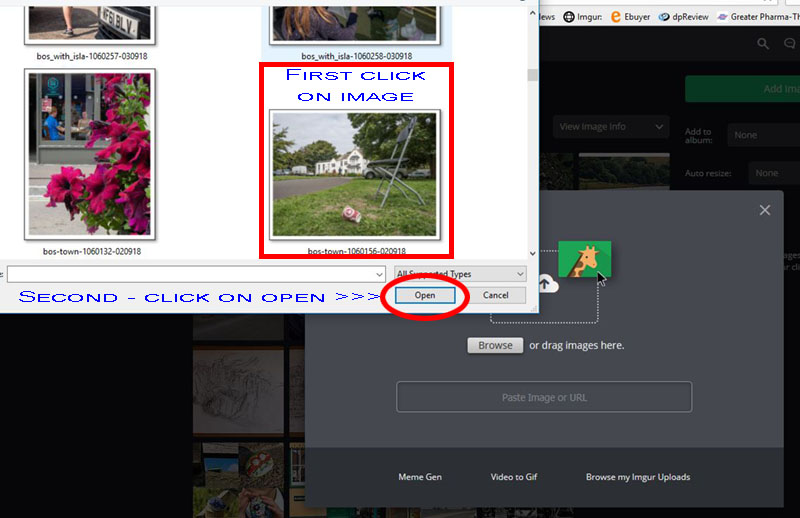
When your picture is uploaded, you will see it on your ‘Images’ page. Select it by LEFT clicking on it.
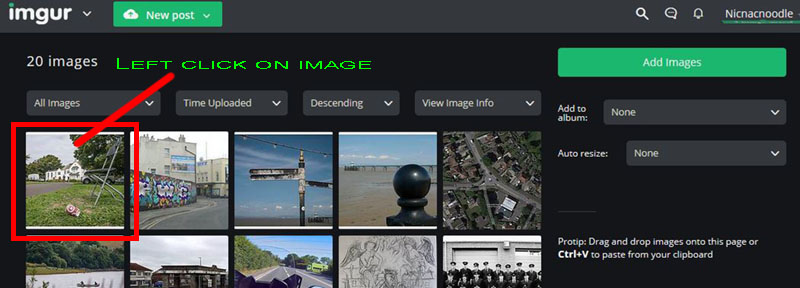
Another screen will open that has a list of different codes displayed. This is the information that will tell a browser where to find your picture in order to display it.
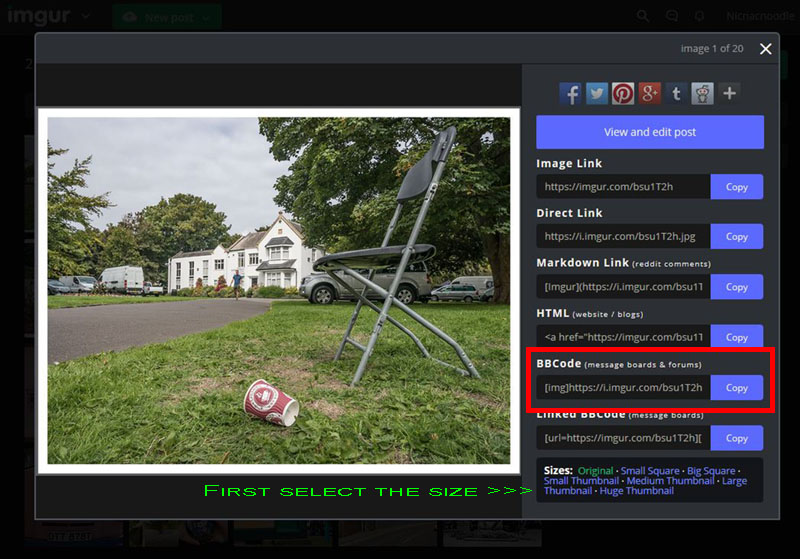
But first select the size of picture that you wish to display. You then need to ‘grab’ the BBCode (message boards and forums) so LEFT click on the blue ‘COPY’ button. Then go to the BOS.COM forum page where you are writing a post, and RIGHT click where you want the picture to be placed, and then LEFT click on ‘PASTE’. You should then see the code (that you copied from the IMGUR page) displayed. Click on the PREVIEW button at the bottom of the message box and your your picture should appear.
FLICKR – also offer a free service that you need to register for. Once registered you can upload pictures to your Flickerstream (the name for the folder with your pictures in it). Click on the upload button on the home page. It is at the top of the page toward the right, and looks like a black arrow pointing upwards in a white cloud. Select the image that you want to upload, add a description, and some tags (neither are compulsory, and follow the rest of the upload procedure. When you see your image displayed in your FLickerstream, LEFT click on it, and when the image opens in its own page, click on the right-facing arrow in the bottom right corner of the screen. Make sure that ‘BBCode’ is underlined, and then choose the size from the drop-down menu. Finally RIGHT click on the line of code starting with [url=hpps://flic.kr, making sure that text is inverted, and then click on ‘COPY’. Then go to the BOS.COM forum page where you are writing a post, and RIGHT click where you want the picture to be placed, and then LEFT click on ‘PASTE’. You should then see the code (that you copied from the Flickr page) displayed. Click on the PREVIEW button at the bottom of the message box to see if your picture appears.
Photobucket – was a very popular image hosting site until it decided to charge a ridiculous amount for its services, and found that hardly anybody stayed with them. Realizing the error of their ways, they relented and it is now free again to use the service. If you prefer to use Photobucket the procedure is much the same, ie upload your picture, copy the display code, and then post it in your post on BOS.COM.
The original guide to posting pictures, went into much more detail, and supplied more screen shots. Unfortunately all these type of web sites revamp their sites from time to time, and slightly change how things are done, making such precise instructions invalid. So it is no longer sensible to spend so much time with full instructions for all hosting sites, and only the IMGUR option is now covered in full. However, the above instructions should enable you to post a picture on the forum, and it all sounds more complicated than it actually is. If you do need more help, simply ask on the forum.
Before leaving the subject of posting pictures, it must be said that ‘size matters‘. So don’t post your pictures too large, or they will probably cause problems with devices displaying them, particularly small devices like mobile phones and tablets. It has been found that a maximum width of 800px (pixels), and maximum height of 650px works well, so it is best to keep your image no larger than that.
Also a polite request. Once you have posted a picture on the forum, please don’t remove it by deleting it on the hosting site, or moving it to a different folder/location. When pictures are removed in this way, it makes a thread look untidy, and often leaves a gap in the thread continuity.
Quoting
Why quote something? Well unless you are replying to something written in the post immediately before yours, it may not be clear what you are talking about, or whose comments you are referring to (a common cause of arguments on forums). If you want to quote the whole post that you are replying to, click on the ‘QUOTE’ button at the top right corner of the post as shown below.
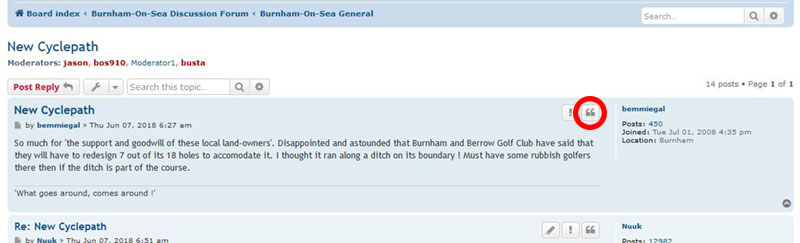
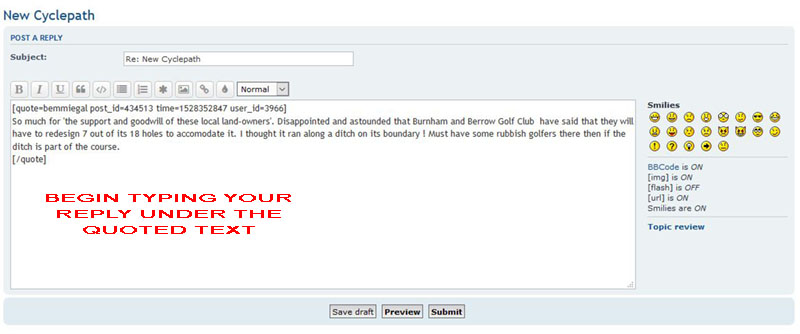
Sometimes it will be messy to quote the whole post (eg when it contains pictures etc) so just ‘copy and paste’ the section that you wish to quote. Or quote the whole post (using the ‘QUOTE’ button), and then delete the section(s) that you don’t want. REMEMBER – Quotes of quotes of quotes look untidy, and confuse the issue!
After inserting the quoted text in your reply, type your response underneath.
Including a link to another Internet site
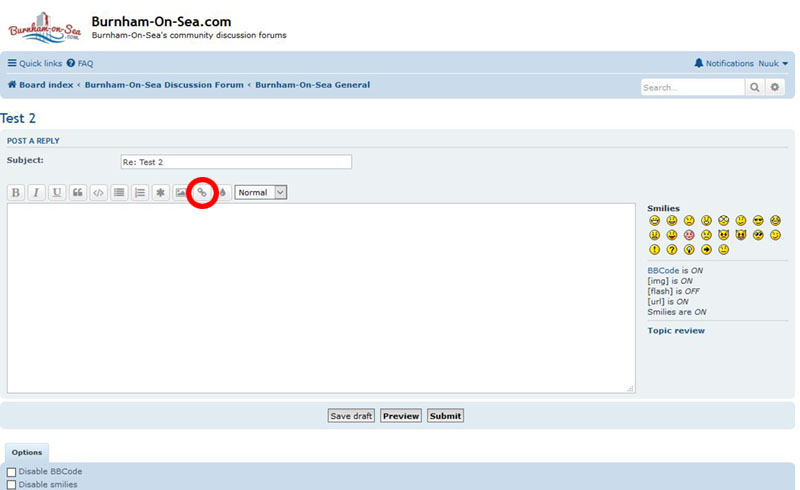
To include a link to another part of the Internet, bring up the ‘POST REPLY’ box, and where you wish to insert the link, click on the URL button at the top of the box. Go to the site that you wish to link to and copy the URL (see the Copy and Paste section) from the top of the window (it’s the bit that begins with something like ‘http://’),
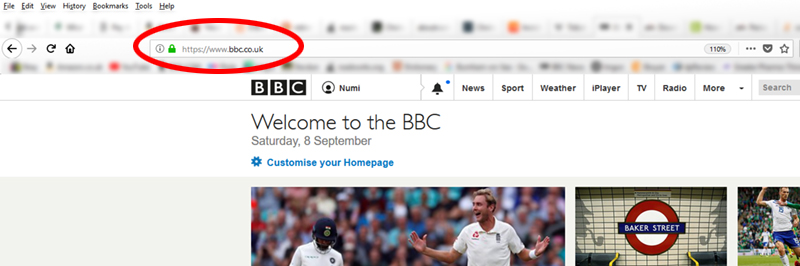
……then paste it between [url] and [/URL] in the REPLY BOX (after LEFT clicking on the URL button).
Searching the forum
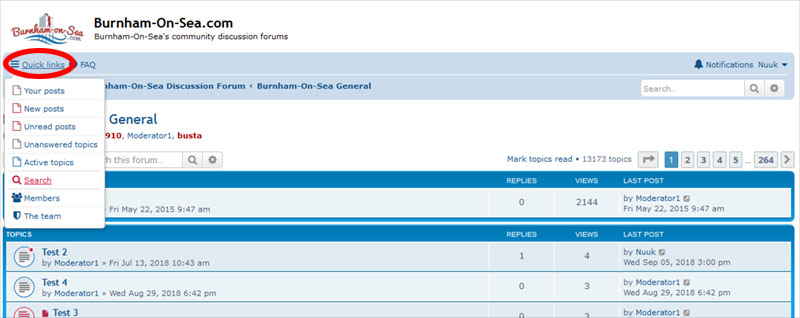
There may be a time that you wish to refer to an old post for some information. To save you going back through every post, most forums have a search function. It’s a bit like Google but it only looks on the site that hosts the forum. To use the search facility, click on the ‘Quick links’ at the top left of the page, and then on ‘Search’ in the drop-down menu.
The Search Query page will display, and you can then enter any relevant words into the top box, and then select if you want to search for any of those words, or if the posts should contain all of them. If you know who posted the information that you are searching for, enter the name of the poster in the second box down. You can narrow the search down by selecting a particular forum to search in, instead of all of them. Make sure that you spell things exactly – a computer is a machine and will look for what you ask it to!
Don’t be a Schmuck
It’s easy to look silly when you post something on a public forum that has come from a third party source! Unfortunately, the Internet has made it very easy to spread false information. So before you quote something ‘amazing’ in a post, check it out by Googling the subject first. If you read something in an email that you wish to share on the forum, go to a site such as Snopes and see if that information is actually true or false.
Hopefully this guide will prove useful in helping people to post on a forum. If you haven’t yet posted on the BOS.COM forums, please do so. The more people who post, the more representative the forum is of local opinion etc. From the list of those registered to the forum, it is clear that a lot of people view the forum without ever posting. It is hoped that the above information will give them the confidence to join in. Don’t be scared, the forum is quite secure and the vast majority of members are friendly, decent folk (even if we have differing views) who will welcome your contributions. So don’t let the few ‘not so considerate’ ones put you off.

Last updated: September 9th 2018 – Copyright © 2003-2018
Burnham-On-Sea.com – All rights Reserved.